¶ Signing into UT for the first time
¶ 1. Accepting your invitation
A team member will send you an invitation which will be delivered from noreply@mail.utilitytrack.com.au, see below:
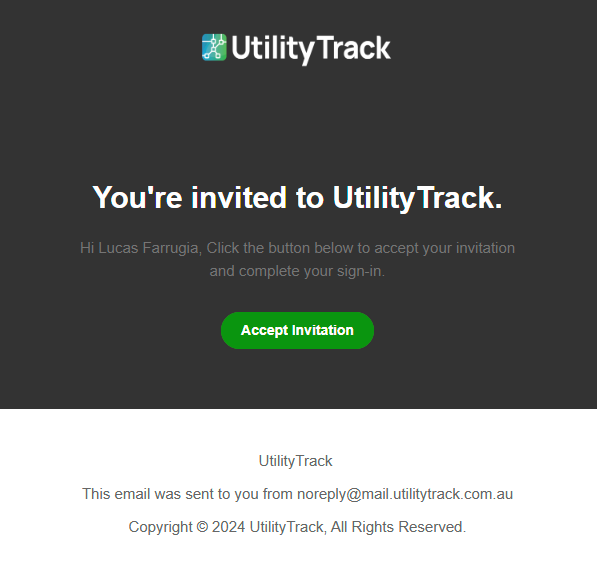
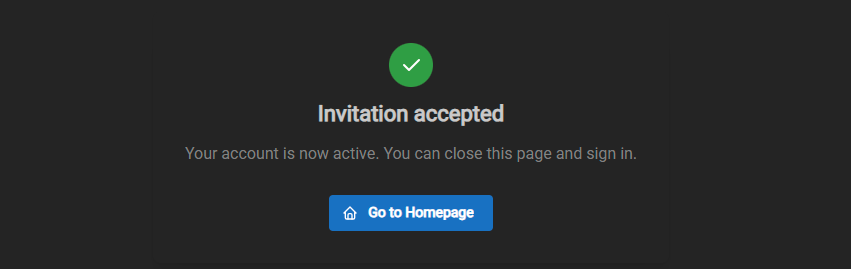
Select 'Accept invitation', you will receive a confirmation that your account has been created.
You will be taken to a login screen.
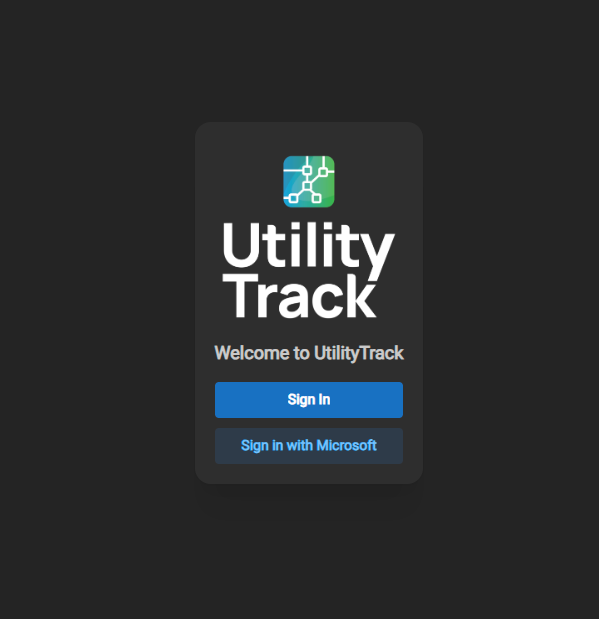
Sign in with Microsoft - Simply use your work email credentials that were invited to sign in.
Your password is managed by your own provider and not UtilityTrack.
¶ 2. Permissions requested
UtilityTrack requires some basic permission access in order to provide you with the service.

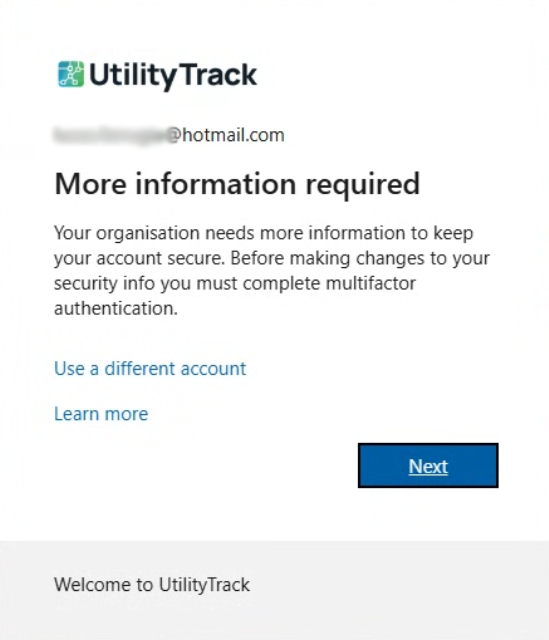
¶ 3. More information required
This is the start of our 2 step Factor Authentication which helps to increase the security of your account by requiring a second device (like a mobile device) to login.
¶ 4. Setting up 2 Factor Authentication
Now we go through the process of setting up 2 Factor Authentication. Select the country and area code you're calling from, then proceed to enter a phone number you wish to receive the security code to.
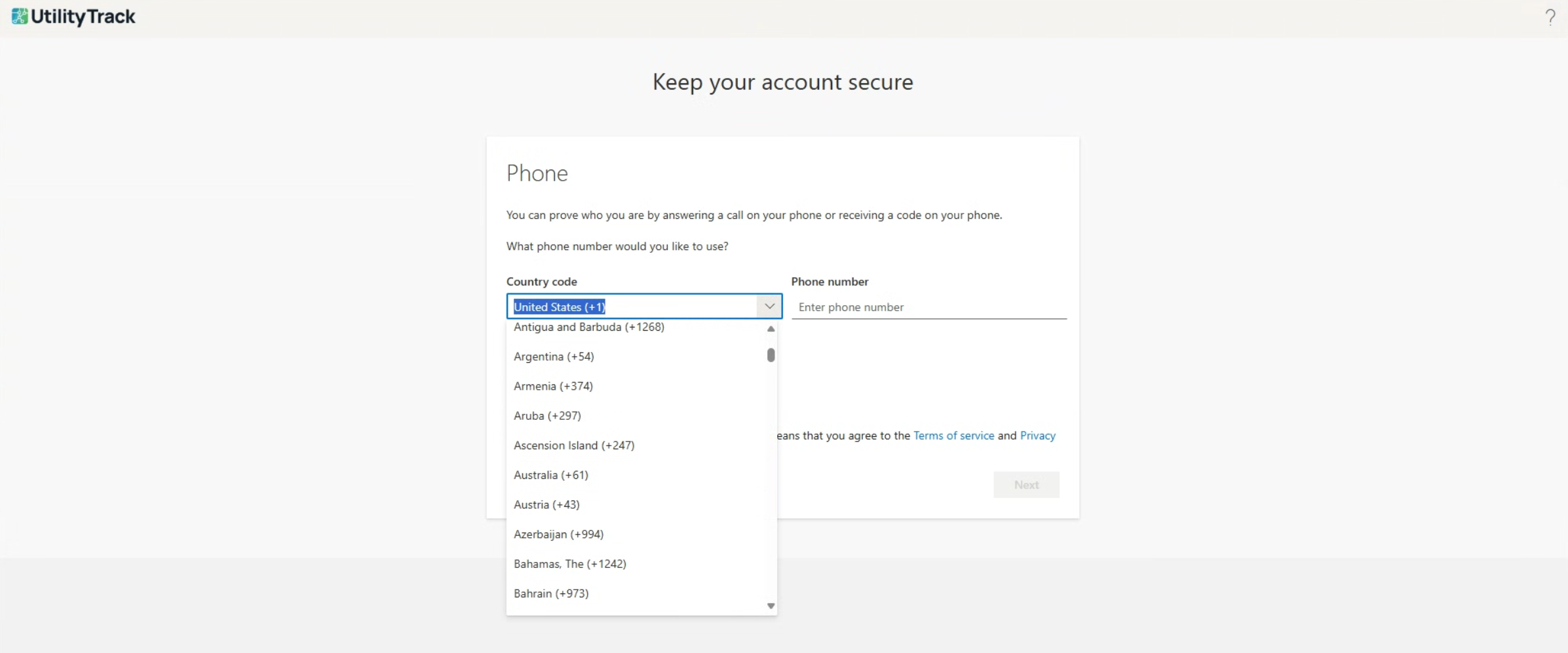
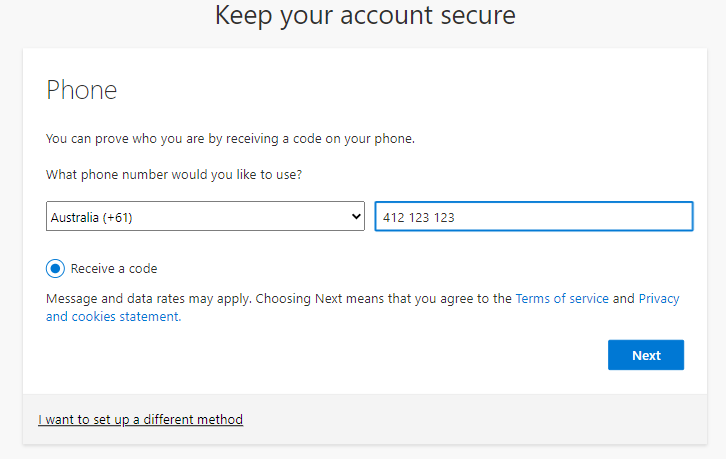
When we press 'Next' we will receive a code via our chosen mobile number, enter it in the next page and follow the below steps.
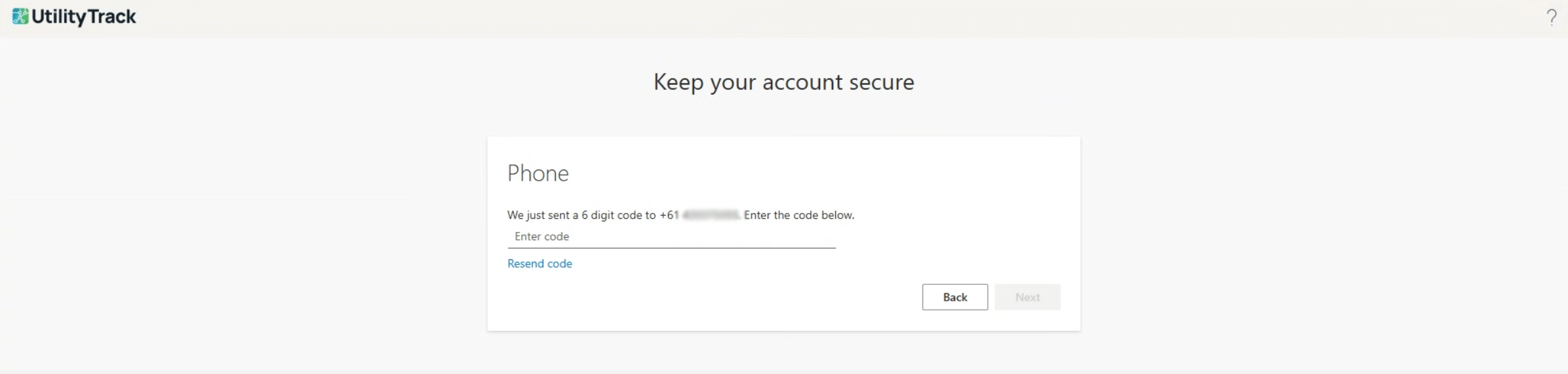
¶ 5. Phone Verified

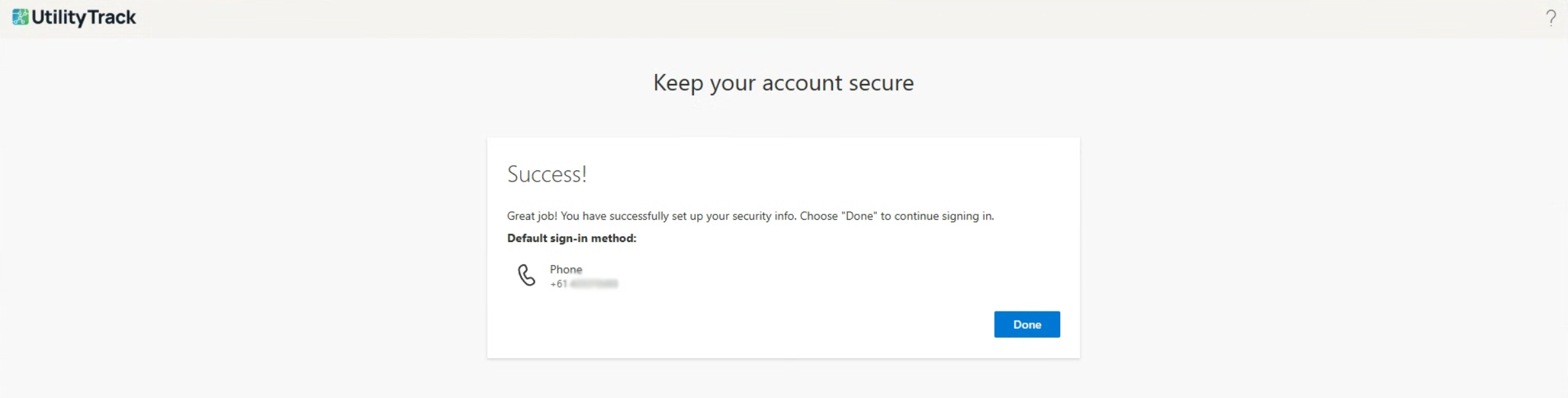
¶ 6. Success
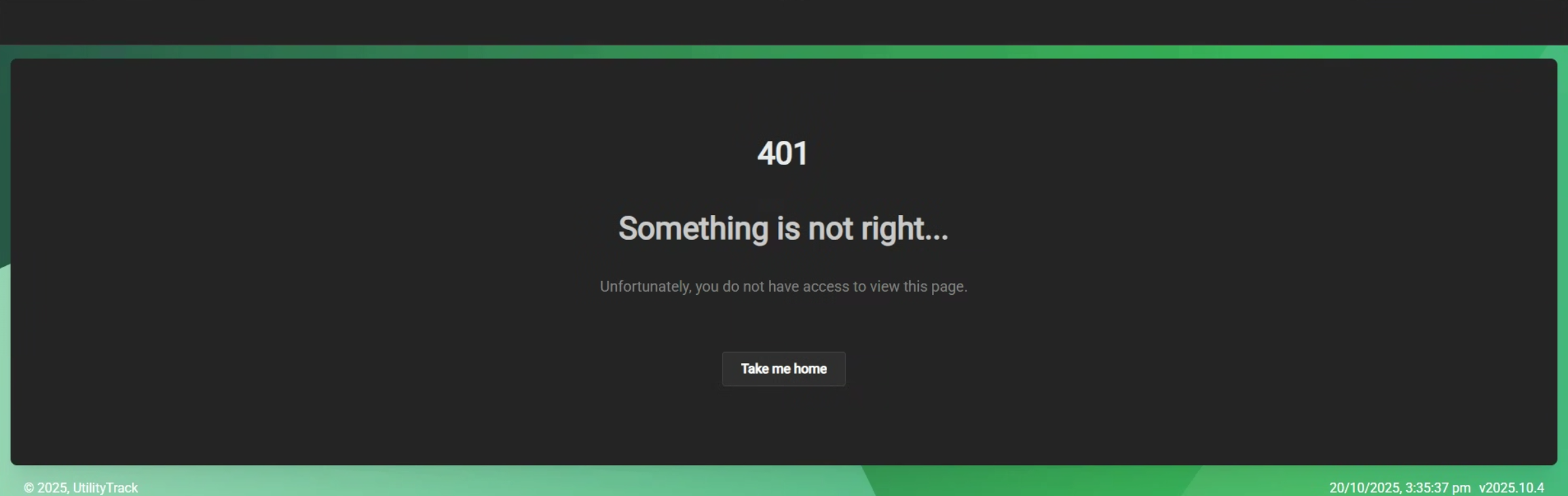
¶ Something is not right
If upon login, you are presented with a blank screen, a UtilityTrack employee is still in the process of setting up your account access.
¶ Next: Entering your Dashboard
You now have access to your Dashboard. Feel free to login to our wiki to access the rest of the guide on utilising your personal repository for all things UtilityTrack.