¶ Troubleshooting
¶ Self Password Reset
Use the below link to reset your password
https://aka.ms/sspr
Use the below link to make changes to your Multi-factor Authentication (MFA)
https://aka.ms/mysecurityinfo
¶ Video not playing
¶ Minimum time for upload
Vans require a minimum of 24 hours (signified by a 24hr icon on surveys) to upload and sync to UtilityTrack before a ticket submission will be accepted.
Delays are commonly due to the following circumstances:
- Vans are experiencing poor or intermittent connection to a telecommunications tower
- Vans have been powered off before uploading can complete
- Vans may contain large files which require extended periods of time to upload
- Transcoding videos large in size may take some time
This can look like a survey that:
- Has no video attached
- Has an unavailable video logo

¶ Historical Data: Pre-June 2023
Surveys before this period will need to be formally requested by submitting a ticket via https://support.utilitytrack.com.au/
¶ How to repair Surveys on Utility Track
¶ Survey video is unavailable
If the above cautions have been investigated, attempt the following fixes. If you are still experiencing issues, please submit a ticket using the link at the top of the page, where a team member will be able to resolve the issue promptly.
1. Navigate to https://portal.utilitytrack.com.au/

2. Open the Menu

3. Click "Site Admin"

4. Click "All Surveys" and enter a date range

5. Click the View Survey button

6. Click the repair broken video source button.

¶ Incorrect System linked
¶ Fixing via Header Editor (single survey)
This guide provides a straightforward process for assigning a system within the Pipeline Survey System on Utility Track. It simplifies navigation through the platform, ensuring users can efficiently edit headers and manage their data.
1. Navigate to https://portal.utilitytrack.com.au/
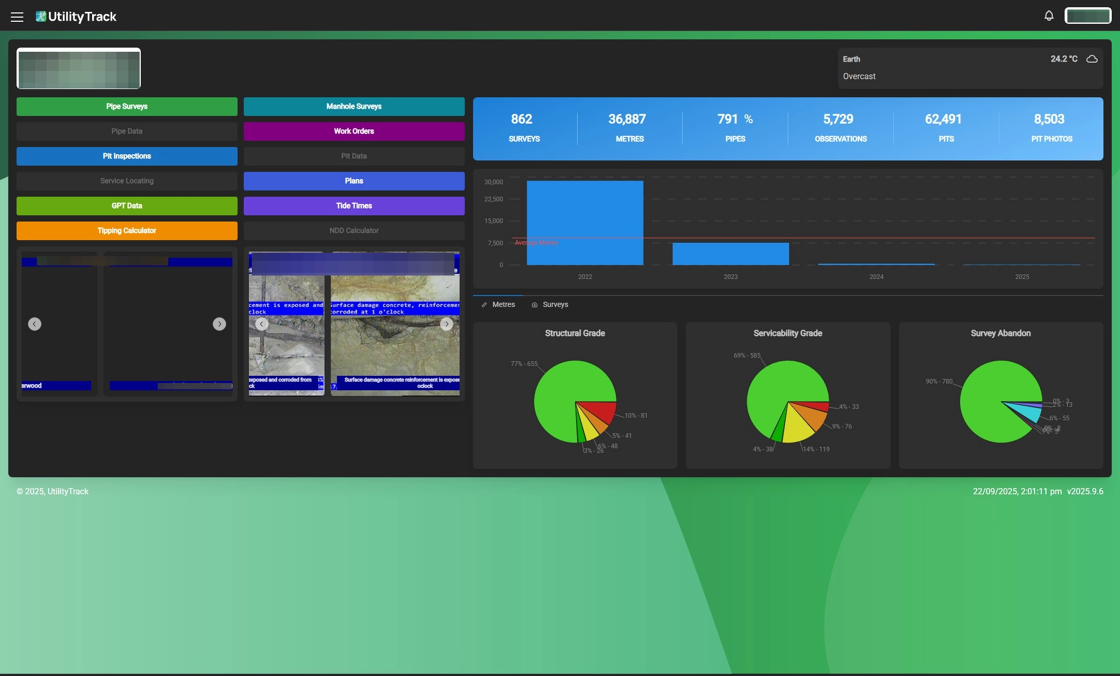
2. Open the Menu.

3. Expand the "Data" menu.

4. Click "Pipeline Surveys"

5. Click here.

Tip: You can access the Header from either the ellipses menu, or from the survey video menu, where the Header Editor is a tab at the top.

6. Click "Edit Header"

7. Click "Edit Header"

8. Click the "System" field.

9. Type the name of the System you wish to set it to.
10. Click on the System from the list.

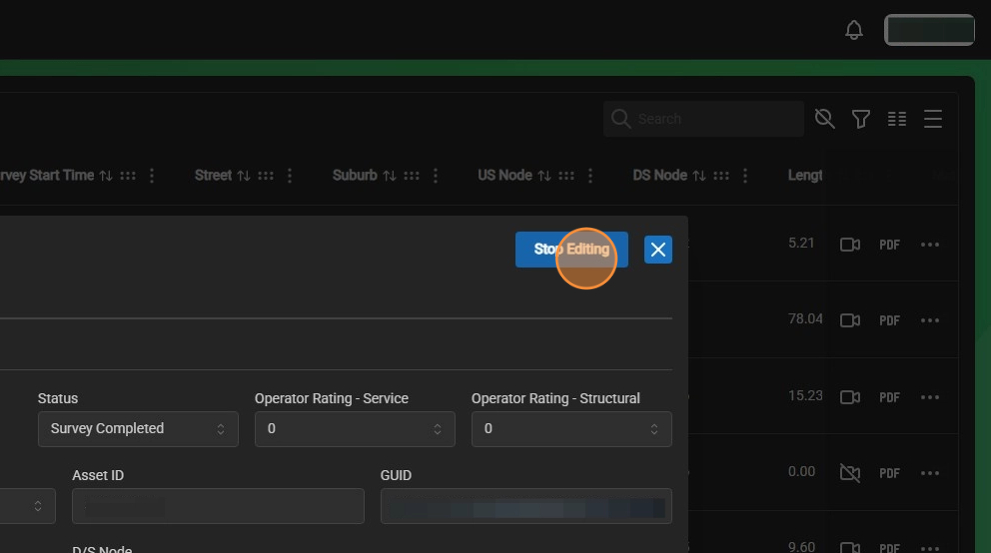
11. Click "Stop Editing"
¶ Re-assign Pipeline Survey (Project)
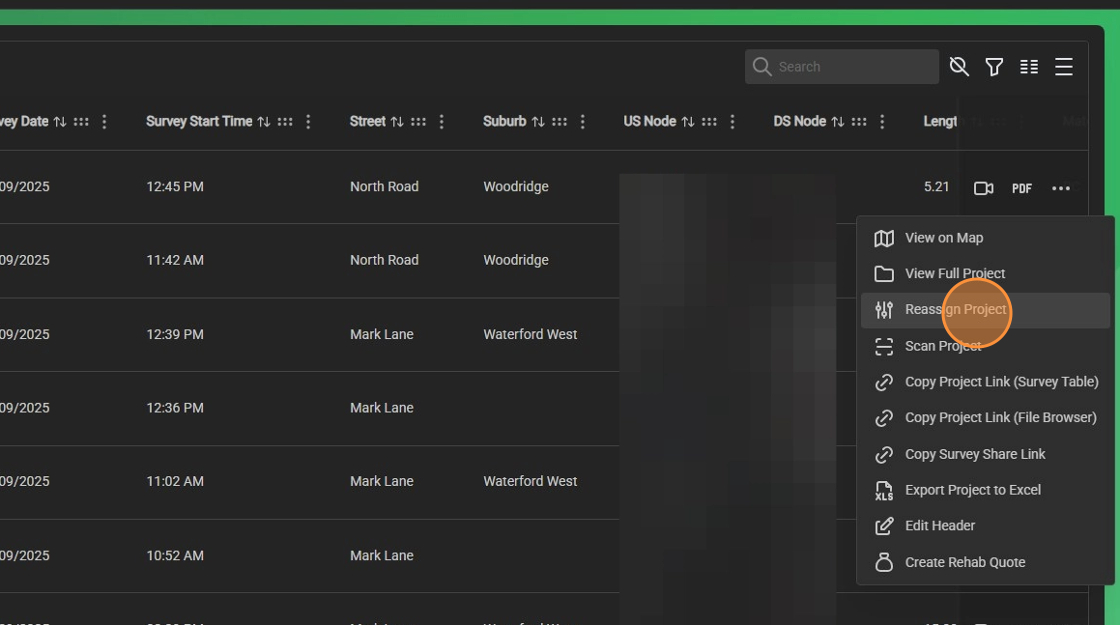
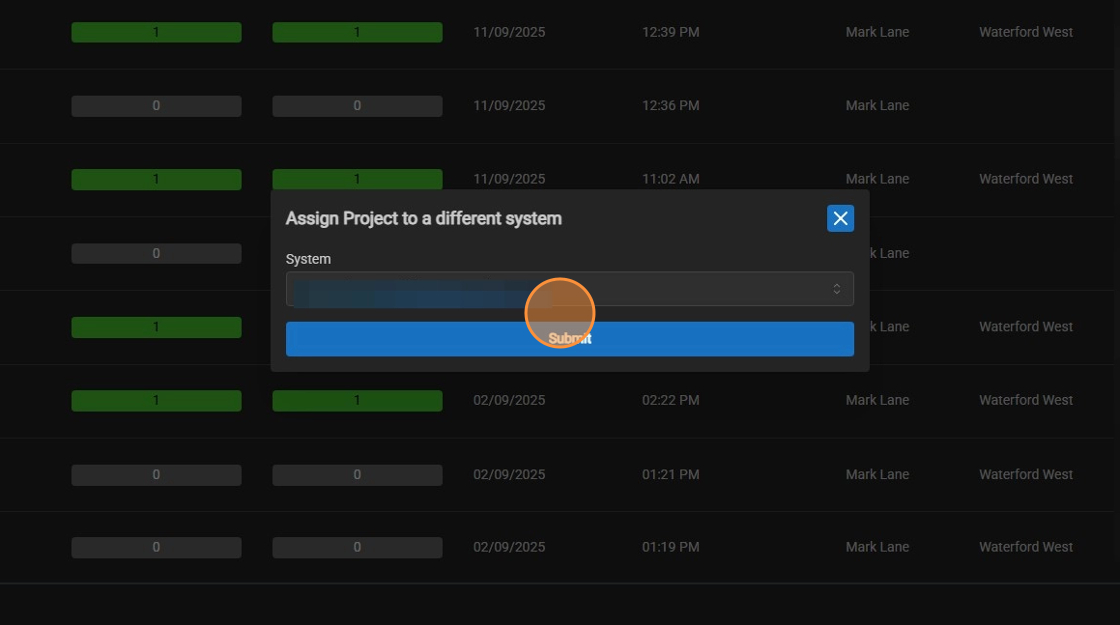
This guide provides a straightforward process for reassigning a Pipeline Survey Project within the Utility Track portal. It simplifies the steps needed to navigate the platform efficiently, ensuring users can manage their projects with ease. By following this guide, users can save time and avoid potential errors in project reassignment, enhancing their overall productivity.
1. Navigate to https://portal.utilitytrack.com.au/
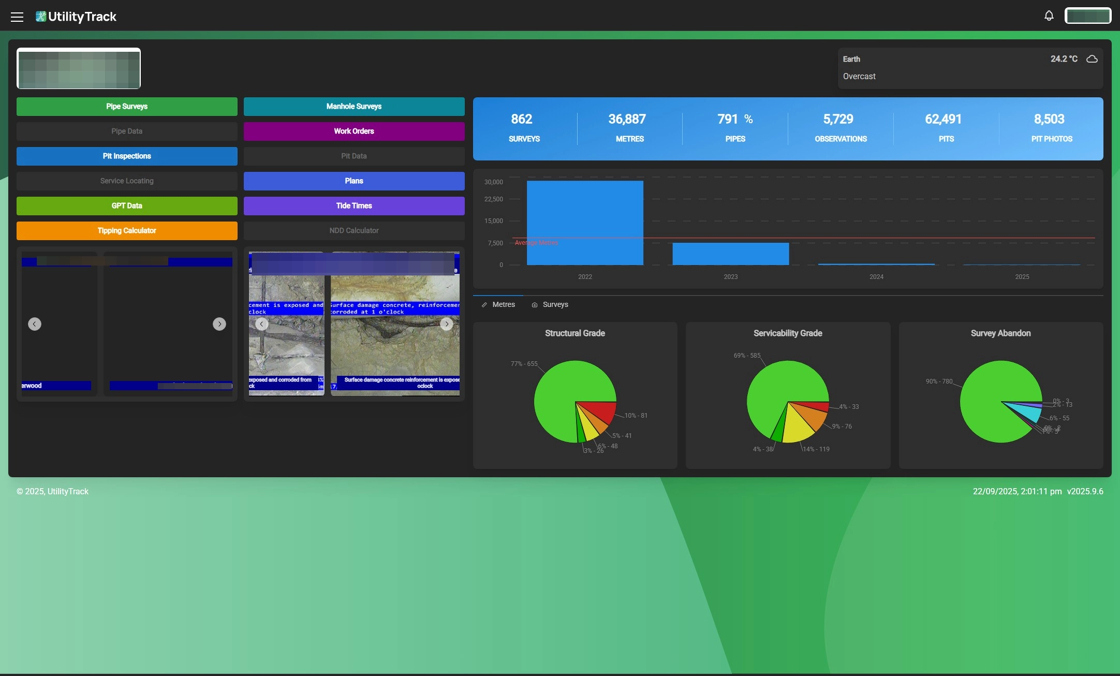
2. Open the Menu.

3. Expand the "Data" menu.

4. Click "Pipeline Surveys"

5. Click here.
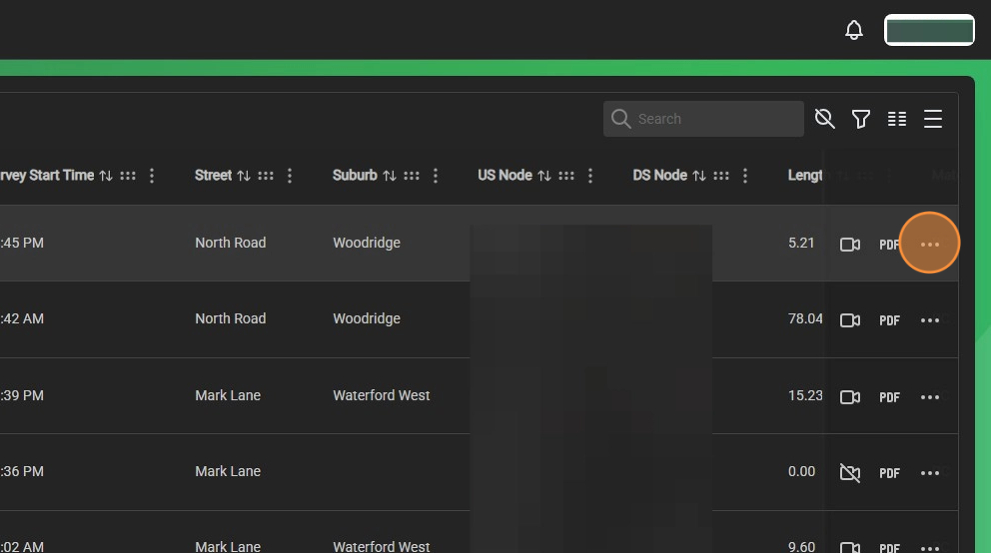
6. Click "Reassign Project"
7. Click "Submit"
¶ No System linked - (requires Site Admin role)
¶ Fixing via Header Editor (single survey)
¶ Fixing via Reassign Project (affects all surveys in that project)
¶ Video / Maps out of date
¶ Signing out / In
Sometimes the server can lose authentication of our account, even though we're still technically signed in. When we go to click on the Maps button, we get an error message / white screen. Signing out and back in again will fix it if this was the cause.
¶ Clear Cache
If you're experiencing issues with UT not showing up-to-date information, please attempt to clear the cache on the device you're using. This will differ between browsers and between devices.
- Google Chrome
- Edge Browser
¶ Google Chrome
¶ Computer - Google Chrome
- On your computer, open Chrome.
- At the top right, click More
Delete browsing data.
- Choose a time range, like Last hour or All time.
- Select the types of information you want to remove.
- Click Delete data.

¶ Android - Google Chrome
- On your Android device, open Chrome
- Tap More
- To delete browsing history (including open tabs), choose a duration and tap Delete data. The default duration is 15 minutes.
- To choose more specific types of data you want to delete, tap More options. Select the types of browsing data you want to delete and tap Delete data.
¶ iPhone - Google Chrome
- On your iPhone or iPad, open Chrome
- Tap More
- Choose the types of information you want to remove.
- Tap Delete Browsing Data.
- At the top right, tap Done.

¶ Microsoft Edge
To clear your browser cache and cookies in Microsoft Edge, go to Settings > Privacy > Clear browsing data and select Ctrl+Shift+Del. You can also type "edge://settings/clearbrowserdata" in your address bar to access this function.
¶ Clear browsing data stored on your computer
To clear your Microsoft Edge browsing data, first decide if you want to delete the data only on the device you're currently using, or across all synced devices. To clear browsing data just on the device you're currently using, make sure sync is turned off. If you want to clear browsing data on all synced devices, make sure you are signed in and sync is turned on. Items that are synced will be cleared across all synced devices.
To turn off sync:
- Select Settings and more.
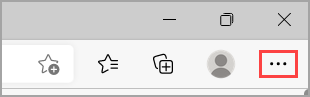
- Go to Settings > Profiles > Sync and select Turn off sync.
To clear your browsing data in Microsoft Edge:
- Select Settings and more > Settings > Privacy, search, and services .
- Under Clear browsing data > Clear browsing data now, select Choose what to clear.
- Under Time range, choose a time range from the drop-down menu.
- Choose the types of browsing data you want to clear (see the table below for descriptions).
For example, you may want to remove browsing history and cookies but keep passwords and form fill data. - Select Clear now.
¶ UtilityTrack Bridge
¶ Survey Cheat Sheet
To avoid conflicts that result in surveys not being visible within UtilityTrack, please avoid this list of Illegal characters within your Projects, Surveys, Addresses etc:\n
¶ Illegal Filename Characters
This is a list of common illegal characters or symbols that will cause issues in a multitude of ways if used in your Projects, Surveys, filenames or folders:
- ( # ) pound
- ( % ) percent
- ( & ) ampersand
- ( { ) left curly bracket
- ( } ) right curly bracket
- ( \ ) back slash
- ( < ) left angle bracket
- ( > ) right angle bracket
- ( * ) asterisk
- ( ? ) question mark
- ( / ) forward slash
- ( ) blank spaces
- ( $ ) dollar sign
- ( ! ) exclamation point
- ( ' ) single quotes
- ( " ) double quotes
- ( : ) colon
- ( @ ) at sign
- ( + ) plus sign
- ( ` ) backtick
- ( | ) pipe
- ( = ) equal sign
- emojis
- alt codes
¶ Change a Project name
If Wincan says it cannot edit the project name as it's currently open, close the project in Wincan first. If it continues to state it's open, restart your device (do not shutdown, restart)
If you need to change a project name, do not change it via windows explorer and simply editing the folder. Instead:
- Open Wincan
- Go to 'Manage Projects' and click on it
- Scroll down to where the project you want to edit is located, click on it, then click on 'Rename Project'
- Enter your new name (preferably with the Project Name Generator) and click Done
